Sending an email
How to compose and send, and what (if anything) it costs you.
Sending mail in MailGate works the way you'd expect: open Compose, enter a recipient, subject, and body, and send.
What's different is what happens to the message after you hit send.
Find your MailGate email address
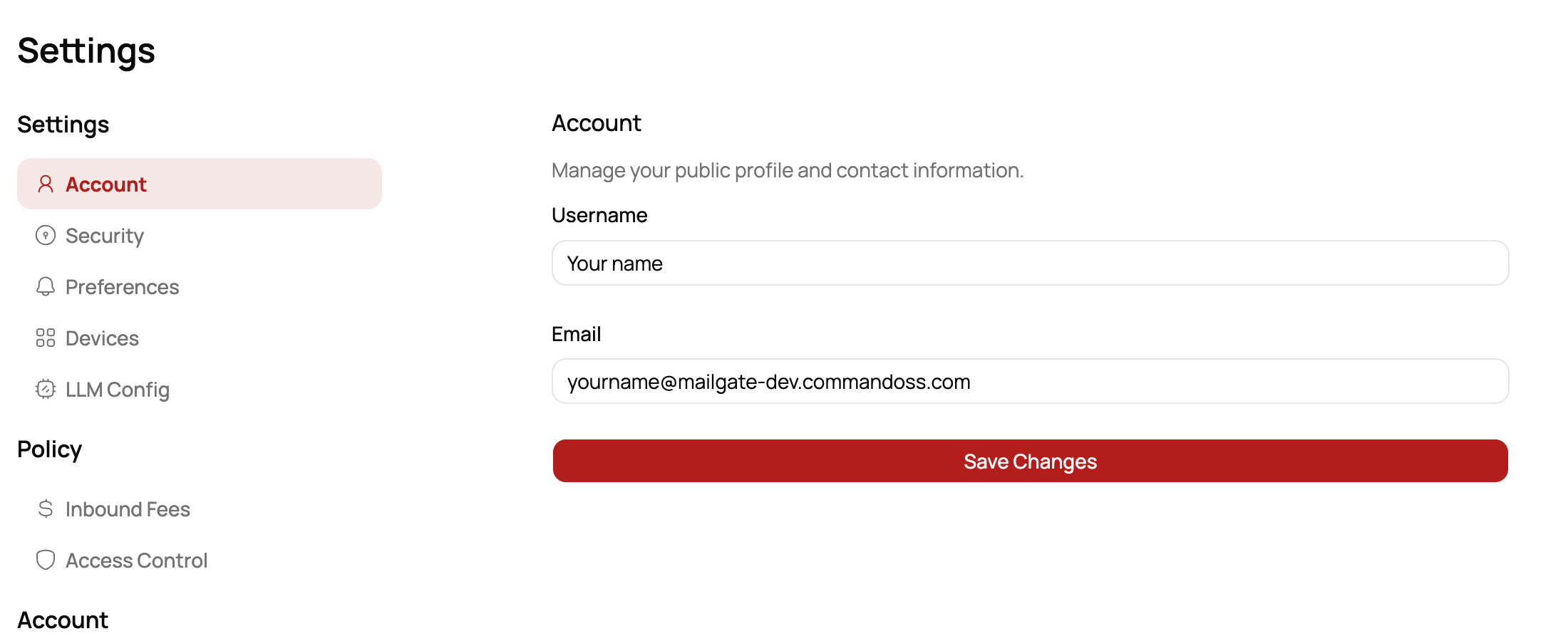
If someone asks where to send mail to you, give them your full MailGate email address, not just your username.
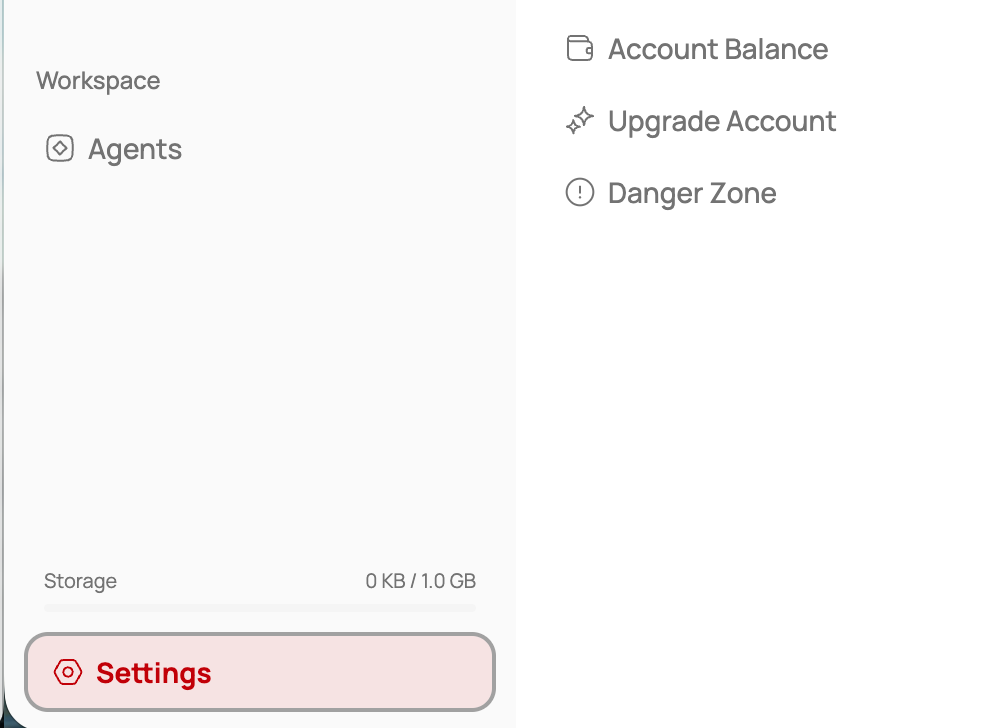
- In the app sidebar, open Settings.
- Select Account.
- Copy the full value in the Email field, including the domain. It looks like
yourname@dev.mailgate.sh.
Where your message goes
- To another MailGate user: the message body is end-to-end encrypted. Only the recipient can read it.
- To an external email (Gmail, Outlook, a work address, etc.): the message is delivered over standard encrypted transport, just like normal email.
You don't have to do anything differently for the two cases — MailGate picks the right path based on the recipient.
What does it cost to send?
Sending is free for you. You are not charged a toll to send mail.
The toll system is about inbound mail: it's what other people may pay to reach you, and what you may pay to reach someone whose inbox is gated. See How pay-to-send works.
Drafts
Drafts are saved as you go. You can create, edit, and delete drafts and come back to them later from the Drafts folder.
Good to know
- Custom "from" domains aren't self-serve yet. You send from your MailGate email; bringing your own domain isn't available in the app yet.
- You can't bring your own SMTP relay. Outbound mail goes through MailGate's sending infrastructure.
Next step
How is this guide?
Last updated on